Volume Control Home
Utility Apps HomeMusic & Audio
4.4524.00 Reviews
- Version
- 1.6.4
- Installs
- 500.00K
- Age Rating
- Everyone
Screenshots

Our Review of Volume Control Home
 Analysis by Appyee
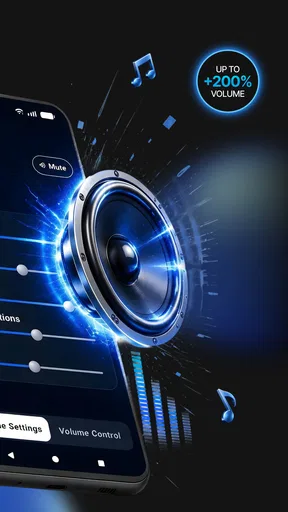
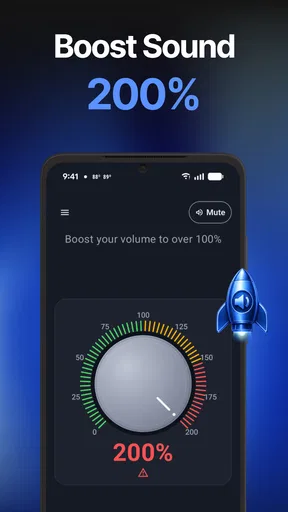
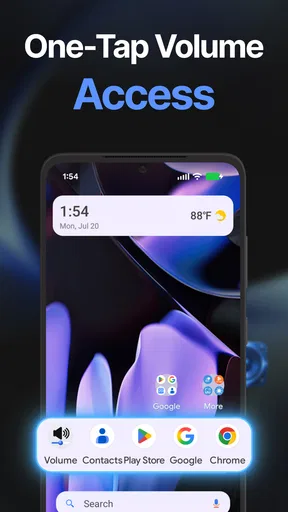
I spend a lot of time moving between music, video, podcasts, calls, and short-form content, so volume control is one of those small phone tasks that becomes surprisingly annoying when it gets in the way. Volume Control Home approaches that problem as a practical Music & Audio utility rather than a player or editing suite. Its purpose is straightforward: put sound controls closer to the home screen and let me push media volume beyond the usual 100% ceiling.
That sounds modest, but it becomes useful when I am checking a rough video edit, reviewing a voice recording, listening to a reference track, or trying to hear dialogue in a noisy room. I do not see it as a tool for creating music or polishing a finished mix. I see it as a control layer that can make the listening and review stages less awkward. That distinction matters, especially for creators who expect equalizers, waveform editing, trimming, exporting, or publishing features.
Where it fits in a creative workflow
The app comes from Utility Apps Home and is free to use. It is listed for everyone, which makes sense for a simple sound-control tool that can be useful at home, at work, or during casual media playback. The current version is 1.5.12, and it works on devices running Android 9 or later. Its audience is broad, but its strongest value appears when I need quick access to media loudness instead of a full audio workspace.
The app has built a solid audience, with more than a hundred thousand installs and an average rating of 4.6 from roughly a thousand ratings. I read that as a sign that the basic idea is landing for many people, though popularity does not turn it into a replacement for a dedicated audio editor. The important question is whether a home-screen volume tool solves your particular friction point.
Starting a listening or review session
My first use case would be opening a draft video, podcast segment, or song demo and wanting to judge it at a comfortable level without repeatedly reaching for the physical buttons. A control that lives on the home screen can shorten that loop: open the project or media app, listen, adjust, and return to the content without digging through system menus.
That is especially helpful during a creative review. When I am checking whether spoken words sit clearly above background music, I often make several small volume changes rather than one dramatic adjustment. A home-screen control makes those changes feel more deliberate. I can compare a quiet passage with a louder one, then return to the source app and decide whether the actual edit needs changing.
The beyond-100% option is more useful as a temporary listening aid than as a permanent solution. A quiet preview may become easier to inspect when the normal system range is not enough. I would use it to catch a buried line, hear a transition, or follow a reference while traveling. I would not assume that louder playback means better audio, because extra loudness can expose distortion, exaggerate harshness, and make a rough mix seem more polished than it really is.
Making and checking creative work
For creators, the app belongs beside the making process rather than inside it. It does not turn a phone into a multitrack workstation, and I would not install it expecting recording, cutting, effects, captions, or file management. Instead, it helps with the practical act of listening to work made elsewhere.
Imagine I have edited a short interview on my phone. The guest speaks softly in one section, while the room tone and music underneath are more noticeable. I can raise the playback level to inspect the sentence without immediately changing the project. That gives me a better chance of deciding whether the problem is simply monitoring volume or whether I need to return to the editor and rebalance the clip.
There is a useful trade-off here. Extra volume can help reveal content, but it can also hide a production problem. If a voice becomes understandable only when I push playback beyond the normal range, I would treat that as a warning to revisit gain, compression, noise reduction, or the music bed in the editing app. The utility helps me diagnose the listening situation; it does not repair the source.
I also like the possibility of using it during reference checks. Before publishing a video or audio post, I want to hear it at more than one level. A draft that sounds acceptable when loud may lose speech clarity at ordinary listening levels. Conversely, a track that feels weak at a low phone setting may be perfectly balanced elsewhere. The app makes loudness changes more accessible, but I still need different headphones, speakers, and environments for a responsible final check.
Iteration without changing the source file
One of the less obvious benefits is that playback loudness can be adjusted independently from the creative file. That separation matters when I am comparing versions. If I am reviewing two cuts, I do not want to alter either export just to hear a quiet section more clearly. I can keep the files unchanged, adjust the listening level, and focus on whether the edit itself works.
This is also useful when collaborating informally. If a friend sends me a draft with dialogue that is difficult to follow on my phone, I can first test it at a stronger playback level before telling them the mix needs work. That prevents an avoidable revision. On the other hand, if the problem remains after careful listening, the feedback becomes more specific: the issue is probably in the source rather than in my device’s immediate volume setting.
I would build a simple review habit around it. First, listen at a comfortable ordinary level. Then raise the level briefly to inspect quiet details. After that, return to the normal range and ask whether the piece still feels balanced. This three-step check avoids the common mistake of judging every creative decision while listening too loudly.
Another practical tip is to make changes in small steps. When a tool offers access to stronger output, it is tempting to jump straight to the maximum. I prefer gradual adjustment, especially with headphones. It gives me a better sense of whether I am solving a clarity problem or merely making everything more aggressive.
Handoff, publishing, and device changes
Volume Control Home does not replace the export or publishing stage. I would still use the original editing or creation app to render a video, save an audio file, or send a finished piece to another person. The handoff value is indirect: it helps me listen carefully before I decide that a file is ready to leave the project.
This distinction answers an important question for anyone working from a phone: can the app make a finished file louder for the audience? I would not treat it that way. Its role is controlling playback on the device, not mastering or permanently altering the media. If the exported file needs a different loudness, that change belongs in an editor or mastering tool that actually processes the file.
That limitation is healthy because it prevents a misleading workflow. I can use the utility to inspect a draft, but I should not assume that a listener on another phone will hear the same result. Before delivery, I would still check the actual exported file in the source app, on ordinary device volume, and through at least one other listening setup when the project matters.
It can also be handy after handoff. If someone sends back notes saying that a section is hard to hear, I can test the material quickly without opening a full editor. If the problem disappears with a modest playback adjustment, the file may be acceptable and the listening environment may be the real issue. If it remains distracting, I know the next step is a proper edit rather than another volume change.
How it compares with ordinary alternatives
The usual alternative is the phone’s physical volume buttons and built-in sound panel. Those are enough for many people, and they have one major advantage: they require no extra utility. If I only change volume occasionally, the default controls are simpler and less likely to add another step to my routine.
The difference is convenience and reach. A home-screen control can be more useful when I am repeatedly checking media or when the physical buttons are inconvenient. It also targets the specific situation where the standard ceiling is not enough. That makes this app more focused than a general audio player, but also less capable.
A music player with an equalizer is a better choice when I need tone shaping, presets, playback queues, or library management. An audio editor is the right choice when I need to cut a recording, repair a level imbalance, or prepare a file for delivery. A system accessibility setting may be preferable when the goal is broader device-wide hearing support rather than occasional creative review.
I would also be cautious about comparing it with so-called booster apps that promise dramatic loudness. For me, the useful measure is control, not the biggest possible number. If stronger playback introduces clipping or listener fatigue, the feature has stopped helping. This is a tool I would use with restraint, not a reason to keep every app at maximum output.
Everyday situations where it earns its place
One realistic scenario is reviewing a vertical video on a train or in a busy café. I might need to check whether a spoken hook arrives clearly before posting. Instead of editing the clip immediately, I can raise playback enough to understand the line, then replay it at a more normal level. That quick test tells me whether the issue is the environment or the mix.
Another is checking an online lesson or recorded meeting. If the presenter’s voice dips while the rest of the recording is fine, a convenient control can save repeated trips into settings. For a person who watches tutorials while cooking, commuting, or working with their hands occupied, the home-screen position may matter more than advanced audio features.
It can also help when comparing a phone recording with a reference track. I would not use loudness alone to decide which one is better, but I can make both easier to hear before judging timing, pronunciation, background noise, or the emotional effect of an edit. That is a small improvement to the review process, yet small improvements add up when I am checking many drafts.
Where the experience needs care
The main friction is that louder playback is not the same as cleaner playback. If the phone speaker, headphones, or original recording is already struggling, pushing the level further may make the result unpleasant. I would keep an eye on sudden jumps, especially when switching from a quiet clip to a loud one, and I would avoid treating the feature as a substitute for safe listening habits.
There is also a workflow limitation for people who want one place to manage an entire project. The app does not belong in the same category as a recorder, DAW, video editor, or publishing platform. It helps me hear work, but it does not organize takes, edit clips, create a final mix, or deliver a finished asset. Anyone expecting an all-in-one creative tool should skip it and choose software built for those tasks.
The home-screen approach may not appeal to users who prefer a minimal phone layout. If I rarely adjust media volume, adding a dedicated control could feel unnecessary. Its value grows with repetition: frequent listening checks, accessibility needs, awkward physical-button access, or media that regularly plays below a comfortable level.
I would also remember that the app’s usefulness depends on the media source and the device. Different players, headphones, speakers, and system settings can behave differently. I would test it with the apps I actually use instead of assuming that every playback situation will respond identically. That is not a reason to dismiss it; it is simply the kind of practical check that prevents surprises.
My verdict for creators and everyday listeners
After looking at it as part of a creative workflow, I see Volume Control Home as a focused convenience tool. It is best at shortening the distance between “I need to hear this better” and “I can listen again now.” The home-screen control is the central idea, while the ability to go beyond the ordinary volume limit gives it a more specific reason to exist.
I would recommend it to people who regularly review videos, podcasts, voice notes, lessons, or music on an Android phone and find the standard controls limiting. It is also worth considering for anyone who wants a quick playback adjustment without opening a full settings screen. The free price makes experimenting easy, and the everyone-friendly age rating keeps the app approachable for general household use.
I would skip it if I need permanent loudness changes, audio restoration, equalization, multitrack editing, recording, or export controls. In those cases, a proper editor or player is the better investment. I would also skip it if the default buttons already solve my needs and I do not often review media.
For me, the strongest workflow is simple: make or edit the project elsewhere, use this app to inspect quiet passages and compare listening levels, then return to the source project when the file itself needs improvement. Its real strength is making review faster without pretending to be the editor. Used that way, it is a sensible Music & Audio companion from Utility Apps Home, with a clear purpose and enough practical value to earn a place on the home screen for the right listener.
Privacy and Permissions
See what permissions an app requests and how it handles your data.
- Location
- approximate location (network-based), precise location (GPS and network-based)
- Phone
- directly call phone numbers
- Photos/Media/Files
- read the contents of your USB storage, modify or delete the contents of your USB storage
- Storage
- read the contents of your USB storage, modify or delete the contents of your USB storage
- Wi-Fi connection information
- view Wi-Fi connections
- Other
- view network connections, expand/collapse status bar, full network access, change your audio settings, run at startup, set wallpaper, control vibration, prevent device from sleeping, set an alarm, Google Play license check, read Google service configuration
Verdict
Strengths of Volume Control Home
- Quick access to volume controls from the home screen
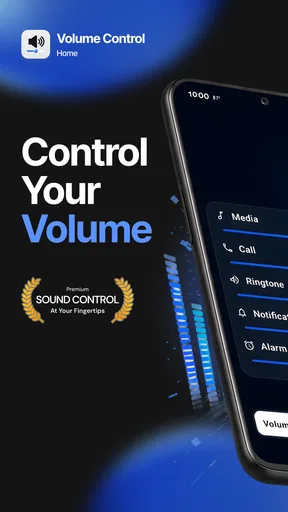
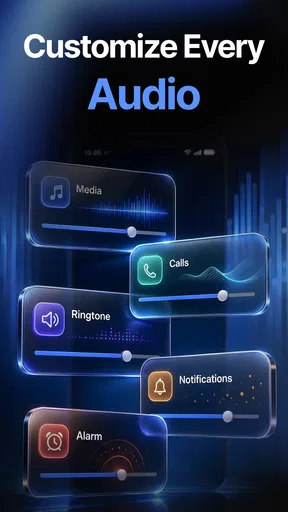
- Helps adjust media, ringtone, alarm, and notification levels separately
- Useful alternative when physical volume buttons are inconvenient
- Simple interface with minimal setup required
- Can make sound adjustments easier for users with accessibility needs
Limitations of Volume Control Home
- Some features may depend on Android version and device manufacturer
- Home screen widgets can use additional battery and system resources
- Limited usefulness if your device already offers convenient volume controls
- May require permissions to work correctly with system audio settings
- Interface customization options may be fairly basic
Similar Picks in This Category
View All
YouTube Music
Google LLC4.4

Samsung Music
Samsung Electronics Co., Ltd.3.8

Spotify: Music and Podcasts
Spotify AB4.3

JioSaavn - Music & Podcasts
Saavn Media Limited4.3

Lark Player:Music Player & MP3
Lark Player Studio - Music, MP3 & Video Player4.6

StarMaker: Sing Karaoke Songs
SKYWORK AI PTE. LTD.4.3
Frequently Asked Questions
What is Volume Control Home and what does it do?
Volume Control Home is an Android utility designed to make managing your device’s sound levels more convenient. Instead of repeatedly opening system settings or pressing the physical volume buttons, it provides quick access to volume controls from the home screen or app interface. Depending on your device and Android version, it may let you adjust media, ringtone, notification, alarm, and call volumes more efficiently.
Which volume settings can I control with Volume Control Home?
The available controls can vary according to your Android phone, operating-system version, and the permissions supported by the app. In general, Volume Control Home is intended to provide access to common audio channels such as media playback, ringtone, notifications, alarms, and voice calls. Some manufacturers combine certain sound categories, so not every device will display exactly the same sliders or options.
Does Volume Control Home require special permissions?
The app may request permission to modify audio settings or create shortcuts, widgets, or controls that remain accessible from the home screen. These permissions are generally related to its main function, but you should review the Android permission screen before accepting anything. If the application offers optional features such as notifications or overlay controls, enable them only when you understand why they are needed.
Is Volume Control Home compatible with every Android device?
Volume Control Home is intended for Android devices, but the experience may differ between phones and tablets. Android versions, manufacturer interfaces, power-saving restrictions, and customized sound systems can affect how volume sliders behave. On some devices, certain audio streams may be grouped together or controlled by system rules. Checking the app’s listing and testing its controls on your device is recommended.
Can Volume Control Home replace my phone’s physical volume buttons?
It can be a useful alternative when you prefer on-screen controls, have difficulty reaching the buttons, or want faster access from the home screen, but it may not completely replace the physical keys in every situation. Android can restrict volume changes while certain apps are active, and some functions—such as changing volume during calls—may still follow system behavior. Its usefulness therefore depends on your device and daily needs.
